
Integrations · Gmail and Slack
How to connect Gmail to Slack
Four ways to get your Gmail emails into Slack, with the exact steps for each, from a free one-click add-on to a workflow that posts only the emails that matter, with a short summary.
The ClearMakes Inbox team · Last updated 22 October 2026
Does this happen with your team's email?
- A customer email sits unseen for hours?
- Someone forwards it to Slack by hand?
- Every email lands in the channel, even the junk?
- The post doesn't say what they want?
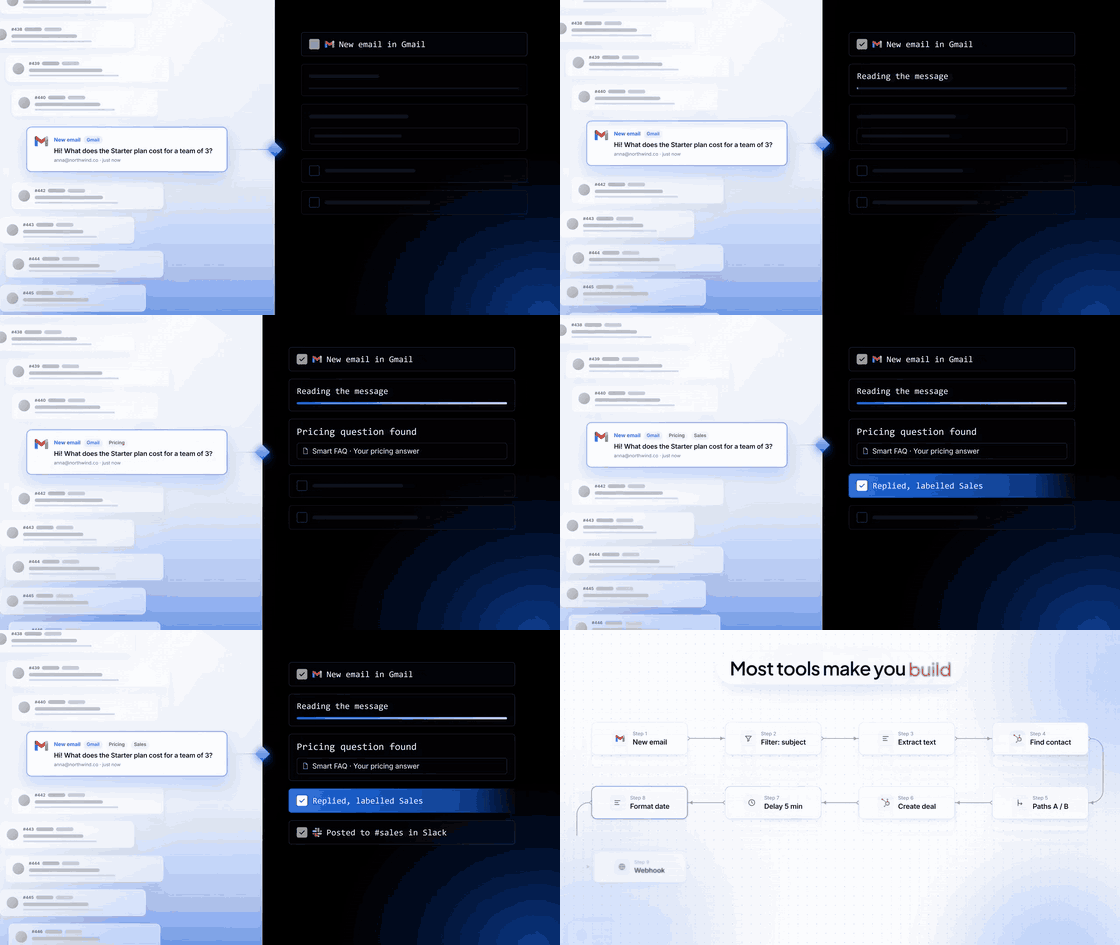
Only the emails that matter, posted for you.
ClearMakes Inbox watches your Gmail and posts the right emails to the right Slack channel. You describe it in one sentence.
Seen by the team
A matching email is posted to the channel by itself, so the team sees it without checking the inbox.
Nobody forwards
It runs by itself after you switch it on. Every run is listed, step by step.
Only what counts
Say which emails: from customers, about invoices, to support@. The rest stay in Gmail.
A useful post
The sender, the subject and a two-line summary, so people know what it's about at a glance.
What is a Gmail Slack integration?
A Gmail Slack integration moves emails from Gmail into Slack, so a team sees them where it already talks. Slack offers a free add-on for sending single emails and email addresses that drop emails into Slack. Automation apps such as ClearMakes Inbox choose which emails to post, to which channel, and what the post says.
4 ways to connect Gmail to Slack
Pick by what you need: one email now and then, every email copied, or only the important ones posted with a summary. The first two are free on every Slack plan; the channel address needs a paid Slack plan.
| Way | Slack plan | Automatic? | Where it lands | Best for |
|---|---|---|---|---|
| 1. Slack for Gmail add-on | Any, free | No: you click for each email | Any channel or person | Sharing one email with the team now and then |
| 2. A channel's email address + Gmail forwarding | Paid plans only | Yes | One channel per address | Copying every email (or every email a filter picks) word for word |
| 3. Your Slackbot forwarding address | Any, free | Yes | Your own messages with Slackbot | Seeing your own emails in Slack; not for a team |
| 4. A workflow in ClearMakes Inbox | Any, free | Yes | The channel or person you name | Posting only the emails that matter, with a summary, to the right channel |
Way 1: the Slack for Gmail add-on (free, one email at a time)
Slack's own add-on puts a Slack button beside every email in Gmail. You open an email, pick a channel or person, and send it. Nothing happens by itself.
Install Slack for Gmail
Find Slack for Gmail in the Google Workspace Marketplace and install it. On a work account, your Google Workspace admin may need to approve it first.Connect your Slack account
Open Gmail on a computer, click the Slack icon in the right sidebar, and sign in to Slack.Send an email to Slack
Open the email, click the Slack icon, choose Search channels and people, pick the workspace and the channel or person, and click Send.
Good for the odd email you want the team to see. It won't post new emails by itself, so it doesn't help when nobody is watching the inbox.
Way 2: a channel's email address and Gmail forwarding (paid Slack)
On a paid Slack plan, every channel can have its own email address. Forward Gmail to it, all of it or only what a filter picks, and each email appears in the channel in full.
Get the channel's email address in Slack
Open the channel's settings
Open the channel, click its name at the top, and open the Integrations or Automations tab (Slack has used both names).Get the address
Choose Send emails to this channel, then Get email address, and copy it. If you can't see it, a Slack admin may have turned it off.
Forward Gmail to it
Add a forwarding address
In Gmail on a computer: Settings, See all settings, Forwarding and POP/IMAP, Add a forwarding address. Paste the channel's address, then Next, Proceed and OK.Confirm it in Slack
Gmail sends a confirmation email to that address, so it appears as a post in the Slack channel. Open it there and click the confirmation link.Choose what to forward
Back in Gmail, refresh the page. To send everything, choose Forward a copy of incoming mail to and Save Changes. To send only some emails, leave that off, search for the emails you want, click Create filter, tick Forward it and pick the channel's address.
The whole email lands in the channel, with no summary and no choice of channel by topic. One filter sends to one address, so two channels need two filters.
Way 3: your Slackbot forwarding address (free, only you see it)
Every Slack member, on any plan, can get a personal forwarding address. Emails sent to it arrive in your own messages with Slackbot, so it is useful for you, not for a team.
Get the address
In Slack, click your profile picture, open Preferences, then Messages & media. Under Bring emails into Slack, click Get a forwarding address.Forward to it from Gmail
Add it as a forwarding address in Gmail and confirm it, exactly as in way 2. The confirmation email arrives in your Slackbot messages.
Way 4: post only the emails that matter, with ClearMakes Inbox
Connect Gmail and Slack once, type one sentence, check the steps and switch it on. It works on Slack's free plan, because Inbox posts through the Slack app you connect.
Create a free ClearMakes account
Start at ClearMakes Inbox. The free plan is enough to try this.Connect Gmail
Open Apps, find Gmail and choose Connect. Google's own sign-in screen lists the permissions before you agree.Connect Slack
Do the same for Slack and pick the workspace. If your workspace only lets admins add apps, ask an admin first.Describe the workflow
Open Workflows, choose to create one, and type what should happen, for example one of the sentences below.Answer at most one question
If Inbox needs to know something about behaviour, it asks one thing first. It never asks you to write the wording.Check the steps and switch it on
Read the steps, change any of them, then create the workflow and switch it on.Watch the first runs
Every run appears in your activity with each step and what was posted, so you can see it working, or see where it stopped.
What the Gmail to Slack workflow can do
It turns an email into a Slack post, but only the emails you care about. You choose which emails count, which channel they go to, and what the post says, and it can do more in the same workflow.
“When a customer emails support@, post the sender, subject and a two-line summary to #support in Slack.”
- When an email arrives in Gmail
- Check it is from a customer
- Summarise it
- Post to #support in Slack
“When an email mentions an invoice or a payment, tell #finance and add the label Billing.”
- When an email arrives in Gmail
- Stop if it is not about invoices or payments
- Add the label Billing
- Post to #finance in Slack
Beyond posting, the same workflow can add the sender to HubSpot, put a row in Google Sheets or a page in Notion, or wait before a step. Inbox can also answer the questions you get every day with your saved answer (Smart FAQ). Each example above is written the way you would type it.
What Inbox can read and send
Inbox reads only the emails your workflows need and posts only what your workflows say to post. You sign in to Gmail and Slack through Composio, our integration provider, and can disconnect either one at any time.
- Gmail: new emails in the connected mailbox, so a workflow can check and summarise them. Labels and drafts only if your workflow adds them.
- Slack: posting to the channels or people your workflow names. This workflow only posts; it does not need to read your Slack messages.
- Your data is encrypted in transit and at rest, and never used to train AI models.
- Google and Slack each show the exact permissions on their own sign-in screens before you agree.
More detail: security and your data and the privacy policy.
Gmail to Slack with Zapier, Make or Inbox: the costs
Automation tools all post new Gmail emails to Slack; they differ in how they count and charge. Zapier counts each action, Make each operation, and Inbox each email that starts a workflow, whatever its steps.
| Tool | What it costs | Good at | Watch out for |
|---|---|---|---|
| Zapier (Gmail + Slack) | Free: 100 tasks a month, two-step Zaps, checks every 15 min. Professional: $29.99 a month for 750 tasks | Huge app list, many Gmail triggers | Each successful action is a task, so multi-step Zaps use more |
| Make | Free: 1,000 credits, 2 active scenarios, 15-min interval. Paid from $9 a month for 5,000 credits | Low price for high volume, visual builder | You build it on a canvas; one operation is one credit |
| ClearMakes Inbox | Free: 3 apps, 2 new workflows and 100 runs a month. Starter: $29 a month for 5,000 runs | One sentence to set up; summaries, checks, delays and wait-for-reply in the same workflow | Fewer ready-made templates than Zapier; newer company |
Limits, and who this is not for
If you want every email copied into Slack word for word, use Slack's own channel address on a paid plan. Inbox is for choosing which emails matter and saying something useful about them.
- Not a shared inbox. Your team still replies from Gmail; Slack is where they see what came in. If you need assignments and shared replies, look at a shared inbox tool.
- AI summaries and checks can be wrong now and then. Check the first runs, and keep sensitive decisions with a person.
- The free plan has 100 runs a month: fine for a test, not for a busy support mailbox.
- How quickly a post appears after an email arrives depends on Gmail and our integration provider; we have not published a measured figure yet.
Need a “we got your message” reply as well? Write one with the free auto reply email generator, with the steps to switch it on in Gmail.
Questions people ask
Is there a free way to connect Gmail to Slack?
Where is the Gmail confirmation code when I forward to a Slack channel?
Can I send only some Gmail emails to Slack?
Will the whole email appear in Slack?
Can it post to more than one channel?
What does ClearMakes Inbox cost?
Keep reading
- Outlook to SlackThe same workflow for Outlook and Microsoft 365 mailboxes.
- Forward emails to a Slack channelEvery way to do it, free ones first.
- Email to Slack integrationPosts, direct messages and channels your workflows can use.
- Gmail automationEverything a workflow can do when an email arrives in Gmail.
- Free auto reply generatorWrite a “we got your message” reply and switch it on in Gmail or Outlook.
- ClearMakes Inbox pricingFree, Starter, Growth and Enterprise.
Post the emails that matter to Slack.
Connect Gmail and Slack, type one sentence, and check the steps.
Free plan: 3 apps, 2 new workflows and 100 runs a month.